Search Results :
×Search Results :
×








Step 01
Install JoomShield Extension
Install the extension, then go to Components > miniOrange - JoomShield to open the Login Security tab.

Step 02
Configure Login and Registration Security
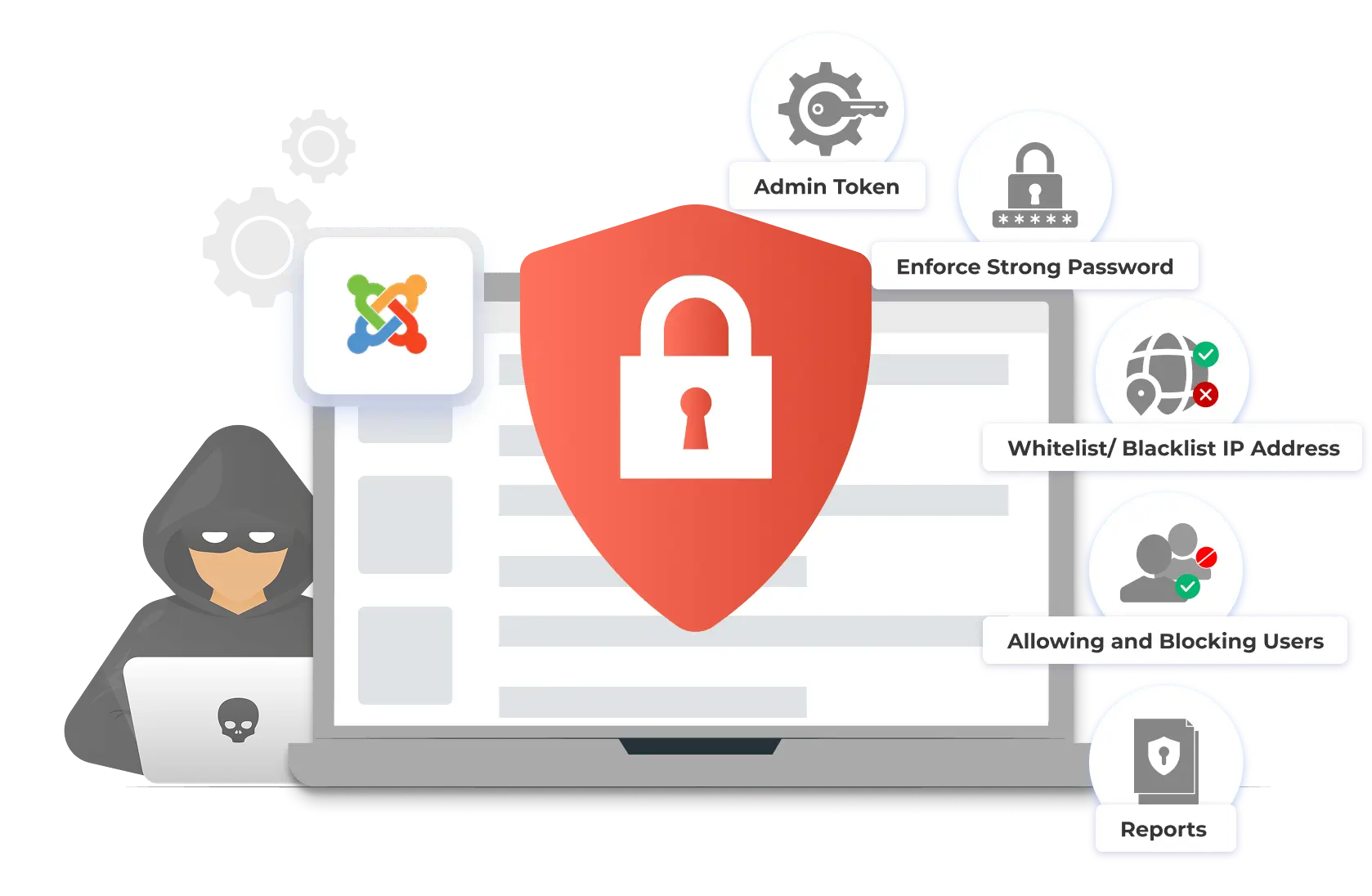
Set a custom admin login URL, turn on brute force protection, enforce strong passwords, and block fake registrations from disposable email domains.

Step 03
Set Up IP Filtering, Backups, and Alerts
Whitelist or block IP addresses, schedule database backups, and turn on email notifications and reports to stay on top of site activity.

Adds a secret key to your administrator URL so the login page loads only when the key is present. A separate browser username and password prompt sits in front of it, and you can whitelist trusted IP addresses so your team is never locked out.

JoomShield tracks failed login attempts by IP address and blocks the source once a threshold is crossed. You can also notify affected users so they know their account was targeted.

JoomShield checks new signups against known disposable email domains and blocks them at registration, keeping your user base genuine.

This feature applies password strength rules at registration and login, so every account on your site, admin or member, starts with a password that resists guessing and credential-stuffing attacks.

Restrict access to specific IP addresses or ranges. Add trusted addresses to a whitelist or unwanted ones to a blocklist, manually and at any time.
Block traffic by country, IP address, or browser, and set a time frame for how long a block stays active.

Get an alert every time JoomShield blocks an IP address, and notify your end users directly if suspicious activity is detected on their account. A clear record of login activity helps you spot patterns and make informed decisions about further restrictions.

Set a second password that must be entered before selected JoomShield settings can be changed, and stay unlocked for 15 minutes once entered. This prevents accidental changes and stops a compromised admin session from switching off your protections.

Create a short-lived administrator account that expires after the time you set, and revoke or delete it whenever you like. It suits developers and support staff, since the account cannot open JoomShield, manage other users, or install or remove extensions.

Take your public site offline instantly during a hack or malware outbreak and show visitors a simple unavailable message, while administrators and whitelisted IPs can still get in to clean up. You can also purge all active sessions, which signs out every user except you and cuts off any stolen login.

Clear leftover cache and upload files from the temporary directory (index.html, .htaccess, and web.config are kept, and this cannot be undone). After a site move, you can also rewrite old domain or staging URLs in the pages visitors receive, without changing your stored content.

Check your database tables, repair the ones that support it, and optimize them in batches to fix damage and reclaim unused space. Take a database backup before running it, as some table types skip repair and optimize can briefly lock a table.
JoomShield lets you add a secret access key to your admin login URL. Once enabled, the default administrator login page won't load for anyone without that key, which keeps bots and scanners from ever finding a login form to attack. You also get to decide what happens when someone tries the old login path without the key, such as redirecting them to your homepage instead of showing an error that confirms Joomla is running underneath.
Yes. JoomShield tracks failed login attempts by IP address and blocks the source once a set threshold is crossed, so repeated password-guessing attempts get shut down automatically. You can also choose to notify affected users by email when their account is targeted, so they know to check their password and account activity even if the attack didn't succeed.
Yes. You can block sign-ups from disposable email domains at the registration step, which keeps spam accounts and fake registrations from ever reaching your user list. This cuts down on the junk accounts that inflate your member count without ever engaging, and it reduces the spam activity that often follows once a fake account gets through.
Yes. You can whitelist or block individual IP addresses or entire ranges, and import a list of addresses in bulk instead of adding them one at a time. By default every IP address can reach your site, so this feature gives you the option to lock things down to a known set of addresses, such as your office network or a client's location, or to keep out addresses you've flagged as a source of abuse.
Yes. JoomShield supports Joomla 3, 4, 5, and 6, so it works regardless of which version your site is currently running. This means you can install JoomShield on an older site without planning a migration first, and it will keep working as you eventually upgrade to newer Joomla releases.
No. JoomShield's checks run in the background during login, registration, and request filtering, so normal visitors and logged-in users don't notice any added load time. The extension only does extra work at the specific points where security decisions need to be made, such as a login attempt or a new registration, rather than on every page load.
Thank you for your response. We will get back to you soon.
Something went wrong. Please submit your query again
Need Help? We are right here!